
This guide explains the customer return journey in TrackQUAL, from creating a new return request through to inspection, decision, repair, replacement, and dispatch updates.
Some brands configure their own status labels and instructions. The steps below describe the standard customer-facing workflow, so your screen may use slightly different wording while following the same general process.
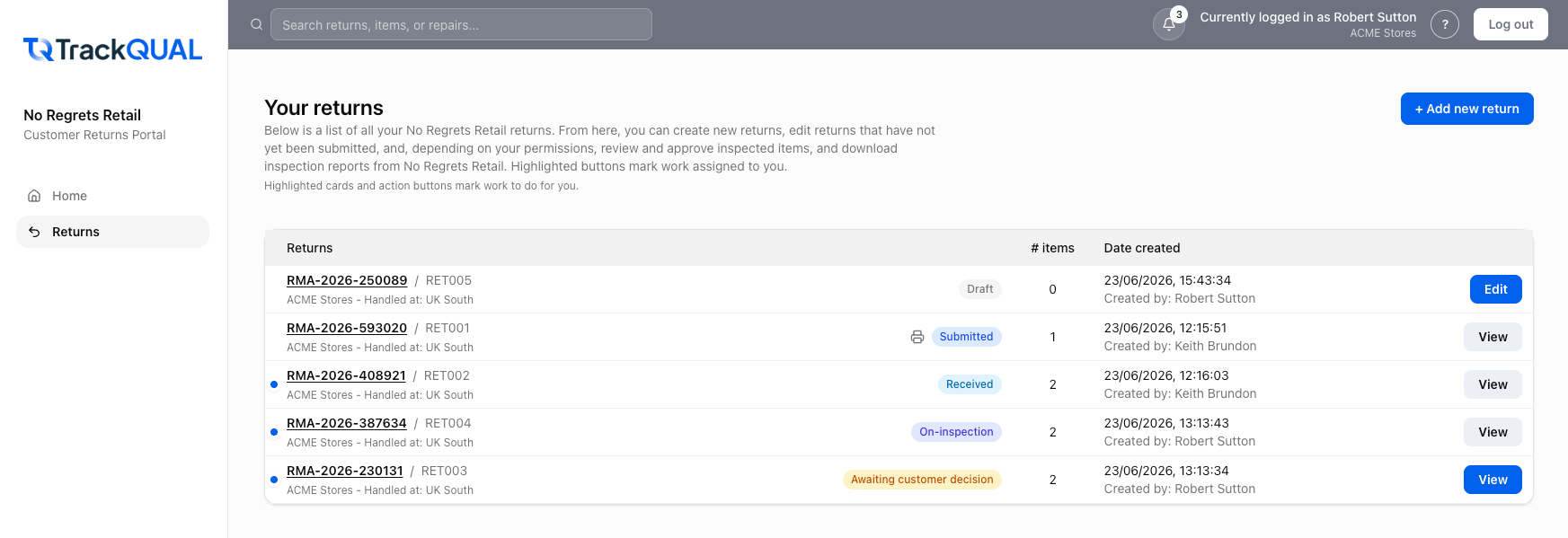
Customer return steps
- Create a new return request
- Submit a return request
- Inspection in progress
- Reviewing inspection results and costs
- Decision received
- Repairs and replacements
What customers can do
As a customer, you can usually create and save return requests, submit them for review, follow progress updates, and respond when inspection results or costs need your decision.
Most inspection, pricing, repair, replacement, warehouse, and dispatch steps are handled by the brand or its service partners. TrackQUAL shows customer-facing progress updates so you can see what stage the return has reached without exposing every internal operational step.
Before you start
Have the product details, serial number if available, purchase or order reference, fault description, photos, and shipping/contact details ready. The exact fields may vary by brand, product, and return type.
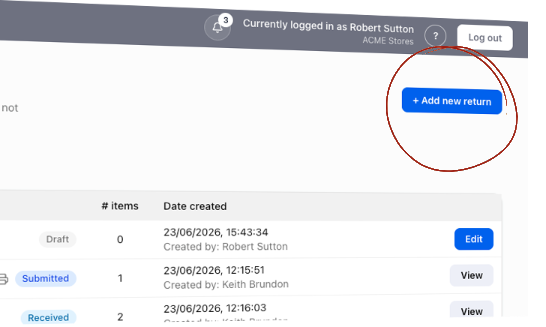
Next step
Start with Create a new return request.