
Back to Customer returns guide | Next: Submit a return request
Use a new return request when you need to tell a brand about a product that may need inspection, repair, replacement, credit, refund, or another return outcome.
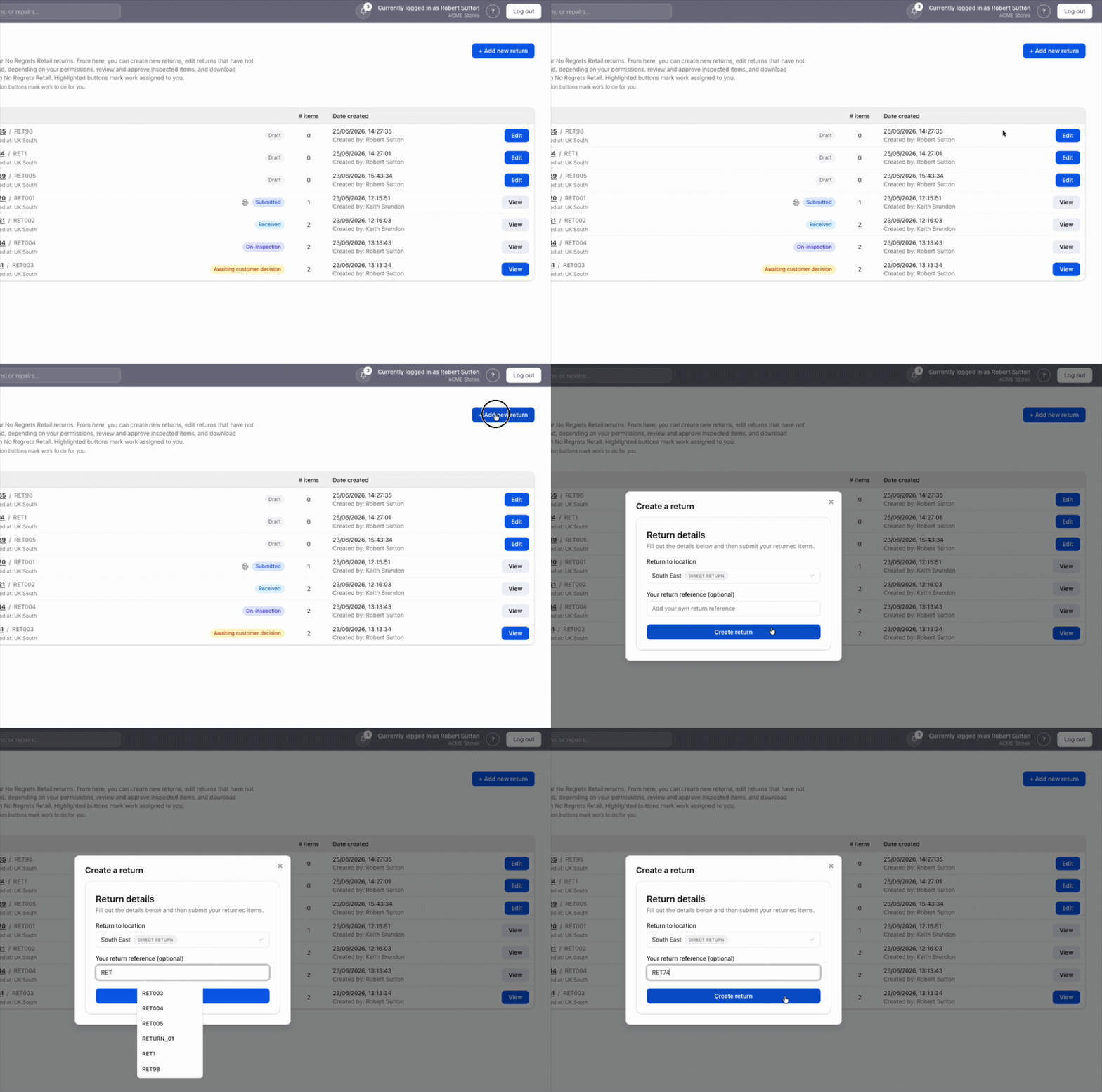
Start the request
Open the returns area and choose the option to create a new return. The form asks for the information the brand needs to identify the product, understand the issue, and route the request to the right team.
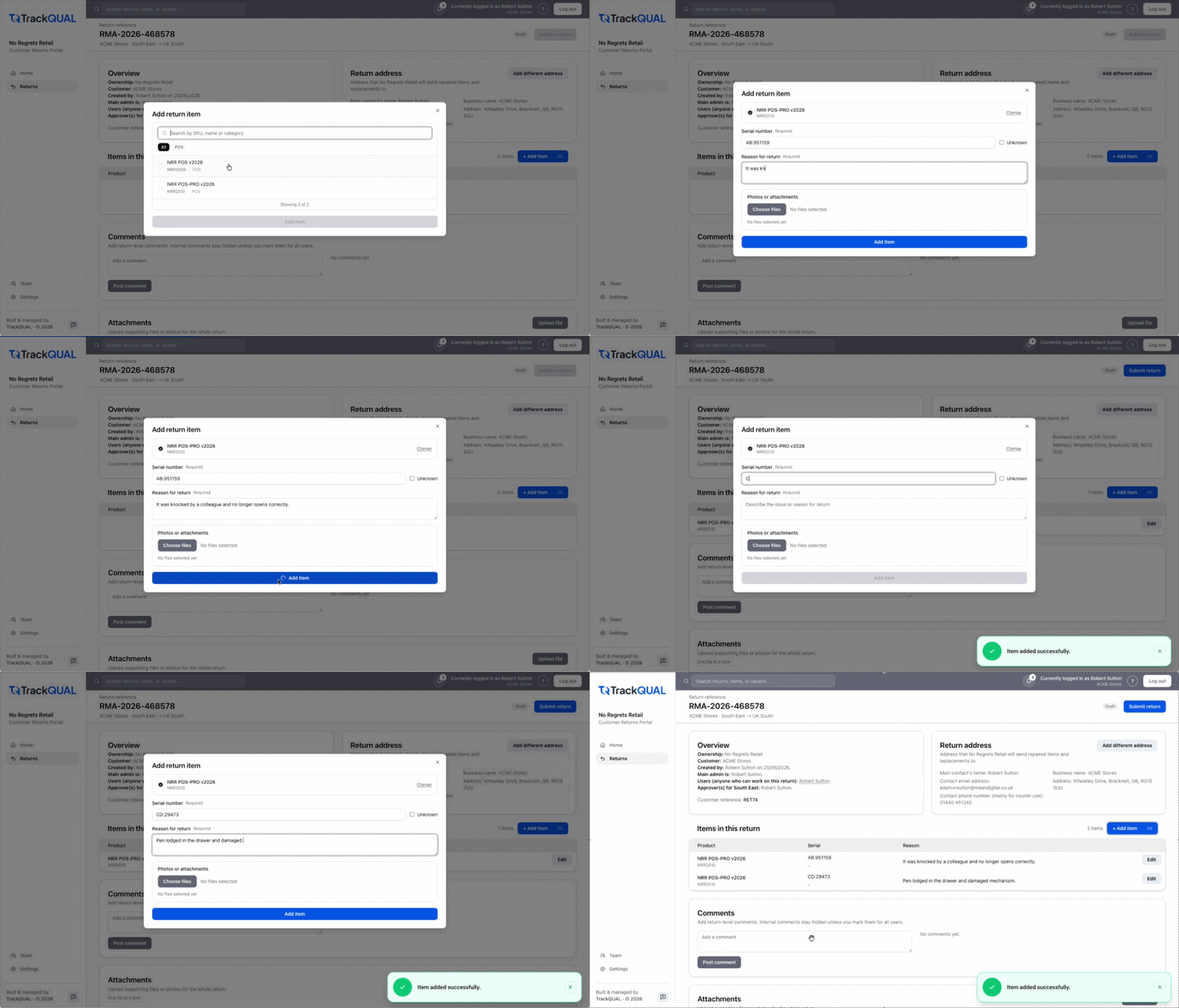
Add product and return details
Complete the required product fields first. These may include the product, model, serial number, quantity, purchase or order reference, and the location or contact linked to the return.
Then describe the issue clearly. Include when the issue started, what symptoms you can see, whether the product has been used or installed, and anything the brand should know before inspection.
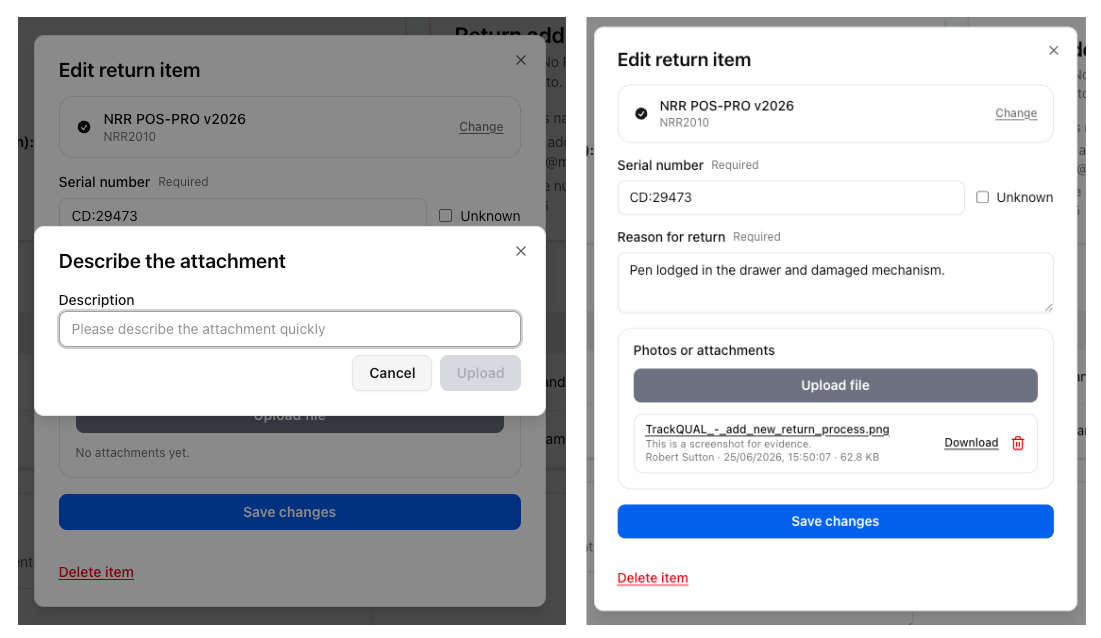
Add photos or documents
If the form allows attachments, upload clear photos, documents, proof of purchase, or other evidence that helps explain the request. Good evidence can reduce follow-up questions and help the brand assess the return faster.
Save as a draft
If you are not ready to send the request, don’t worry, everything is saved as-is. A draft is for your own preparation and has not yet been submitted to the brand for action.
Before submitting, review the details for accuracy. The next guide explains what happens when you submit the request.
Back to Customer returns guide | Next: Submit a return request